PXM shares a local site through a Cloudflare tunnel. Start from the site itself, so the link always belongs to the project you selected. Sharing is included in Free, and it never starts on its own.
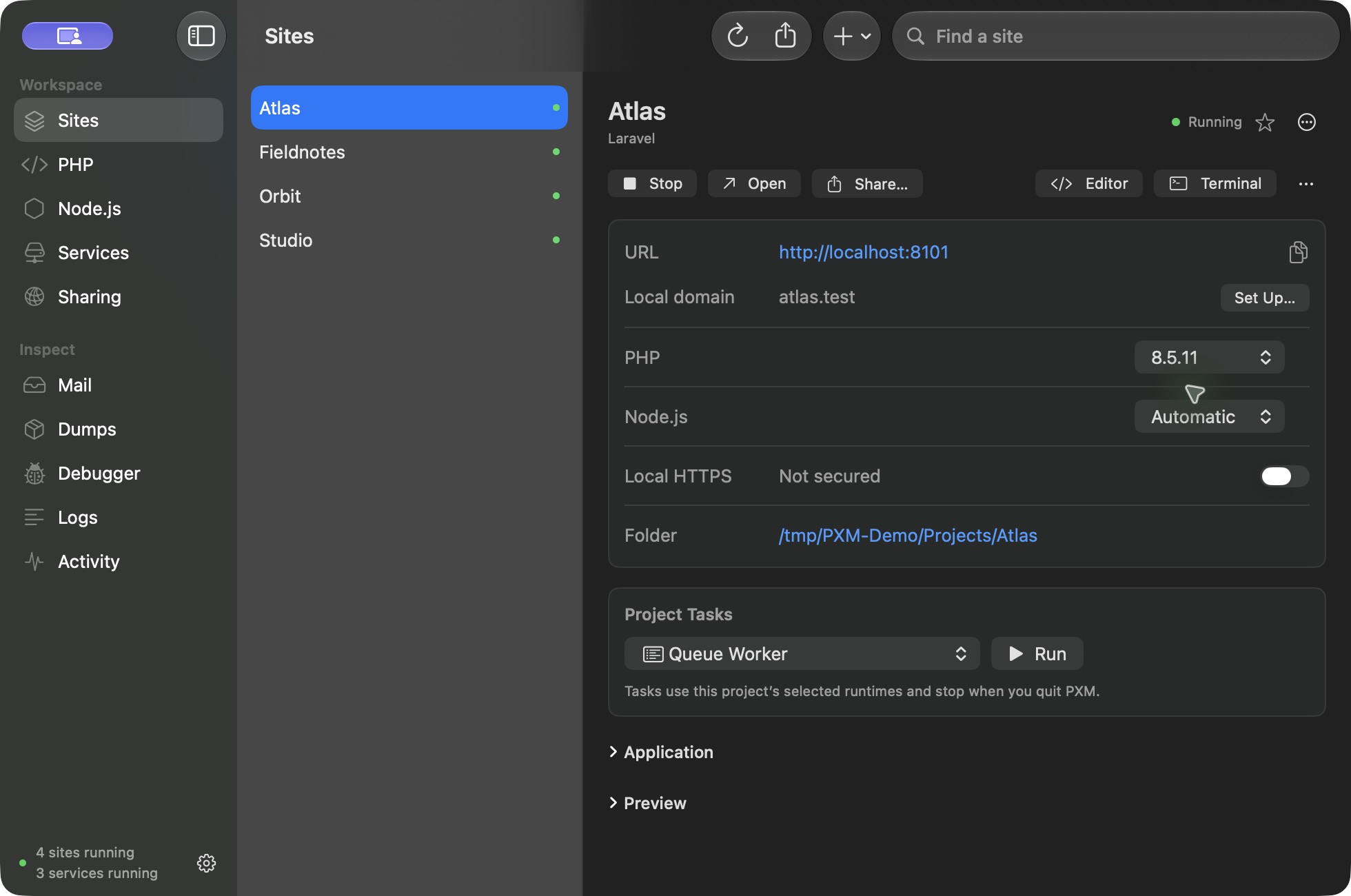
Make a Quick Link.
Select a running site, choose Share, then Quick Link. PXM connects the tunnel and shows the public address once it is ready. Copy or open the link from the site's details. Quick Links are temporary.
Use your own domain.
Choose Your Domain and connect the Cloudflare account that manages it. PXM reads the authorized domain, so you only enter a subdomain. Review the full address before sharing. PXM will not silently overwrite unrelated DNS records; resolve a conflicting route in Cloudflare or choose a different subdomain.
A tunnel configured in the Cloudflare dashboard is a separate option. Start it from PXM with its dashboard token, after accepting its configured routes.
Stop sharing.
Choose Stop Sharing to disconnect the public route. Your local site keeps running. Closing a browser tab does not stop a tunnel. Stopping does not delete the remote tunnel or DNS records; remove those in Cloudflare when you no longer need them.
From the terminal.
pxm shares
pxm share start shop
pxm share start-tunnel my-tunnel --accept-dashboard
pxm share stop SESSION_ID
pxm share stop-site shop
share start never starts a stopped site, and no sharing command changes DNS.
Before you make a site public.
Check what the project exposes, including development accounts and debugging pages. A public link is reachable from outside your Mac. Authentication and access control stay your project's responsibility. Your coding agent can share through the MCP server too, but only after an explicit confirmation.
Good to know.
- Sharing never starts on its own, not at launch and not when a site starts
- share start never starts a stopped site; start the site first
- WebSockets over a Quick Link are not verified
- Stopping a share leaves the remote tunnel and DNS records for you to remove